
Host withdrawals
Chamet Withdrawal Guide: Set Up and Link MetWallet
The host withdrawal process in this guide has two parts: prepare your MetWallet account, then link it from Chamet’s withdrawal screen. A transfer into MetWallet and a cash-out from MetWallet to your payout account are separate actions.
- Chamet My Beans
- MetWallet
- Your payout account (separate cash-out)
Follow the instructions displayed by your own account. Available payment methods, fees, limits and verification requirements can differ.
This illustrated flow follows host withdrawals through My Beans. Agents should check the settlement and payment instructions in their agency account; it is not the agency commission settlement process.
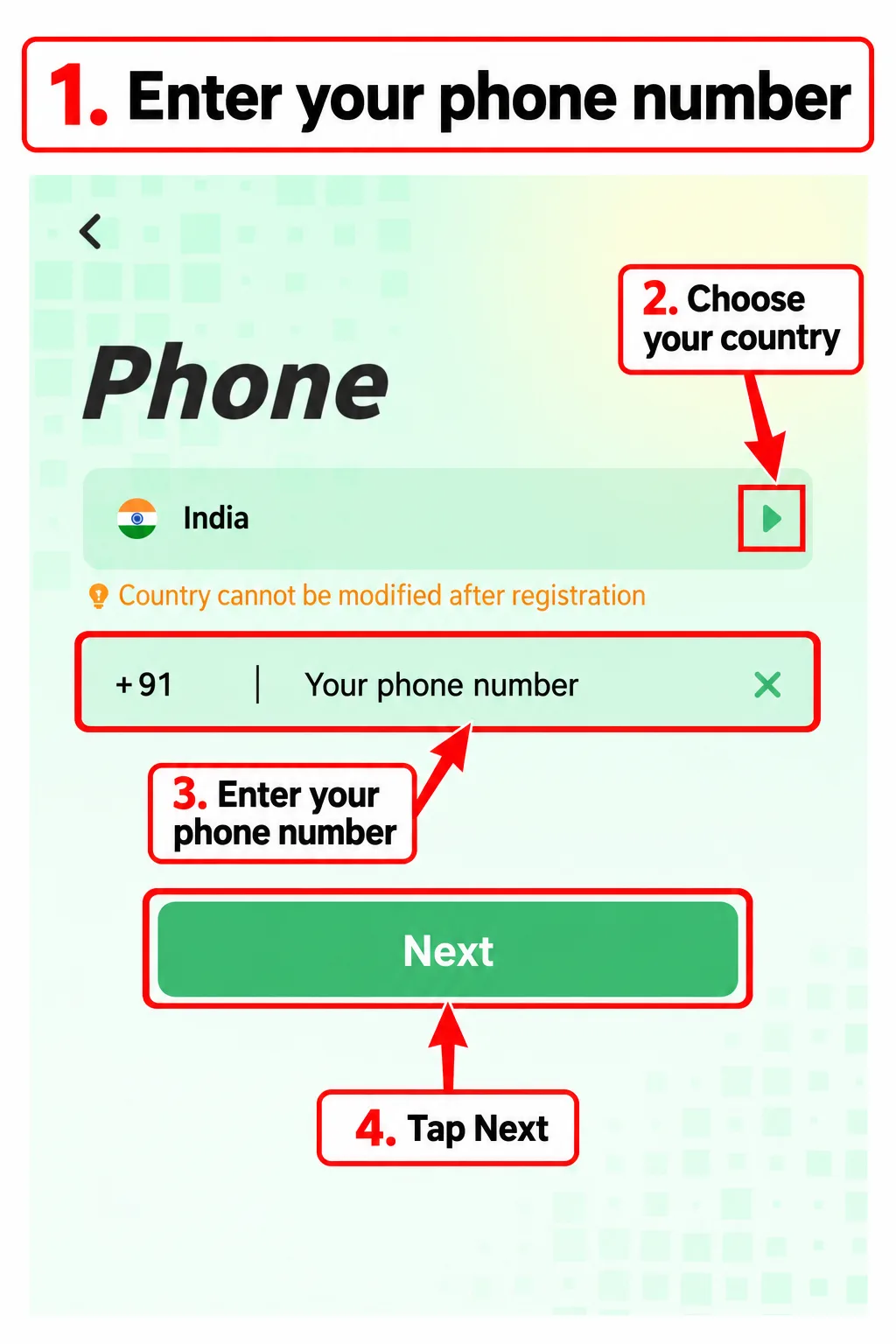
Part 1: Set Up MetWallet
-
Enter your phone number
-
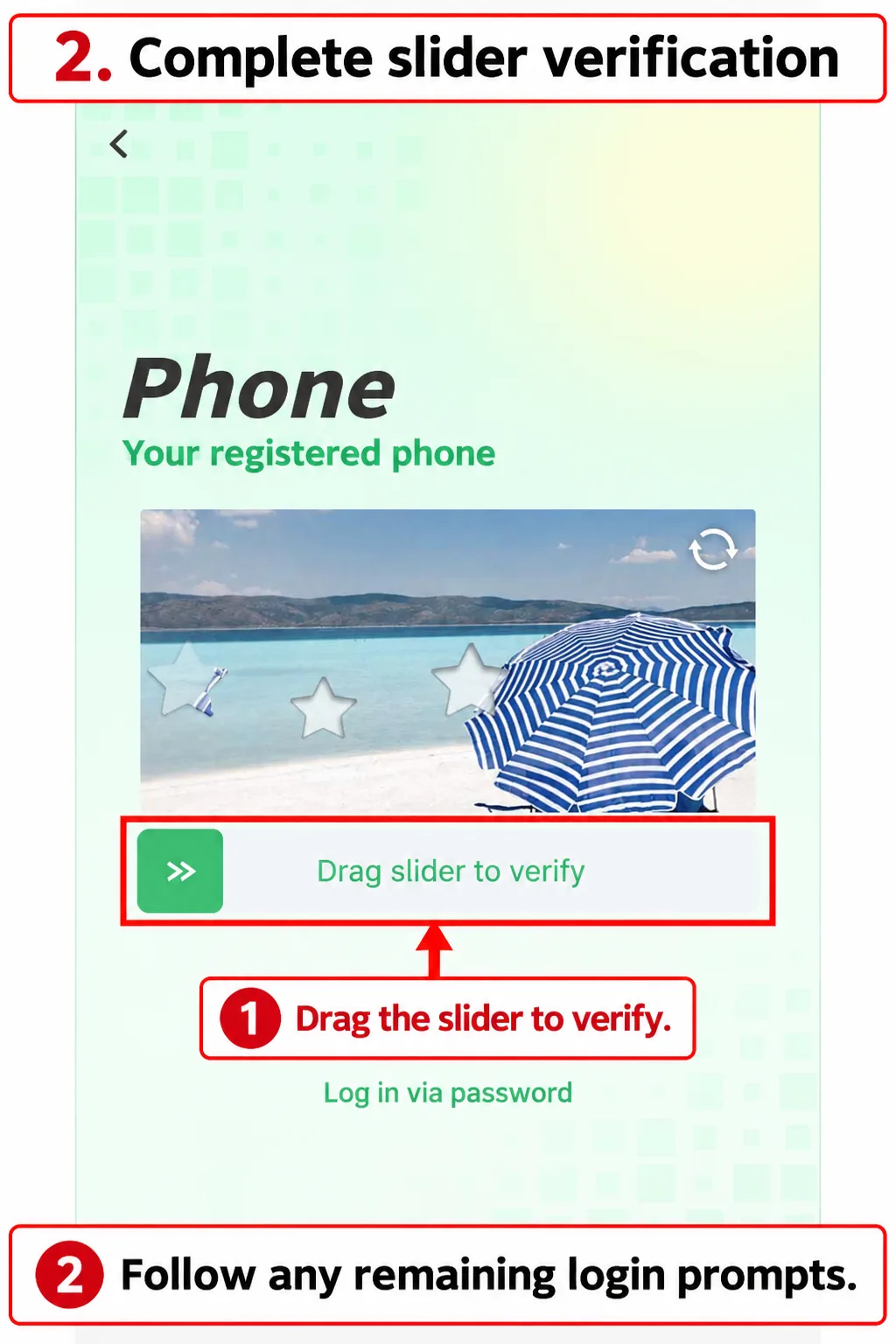
Complete slider verification
-
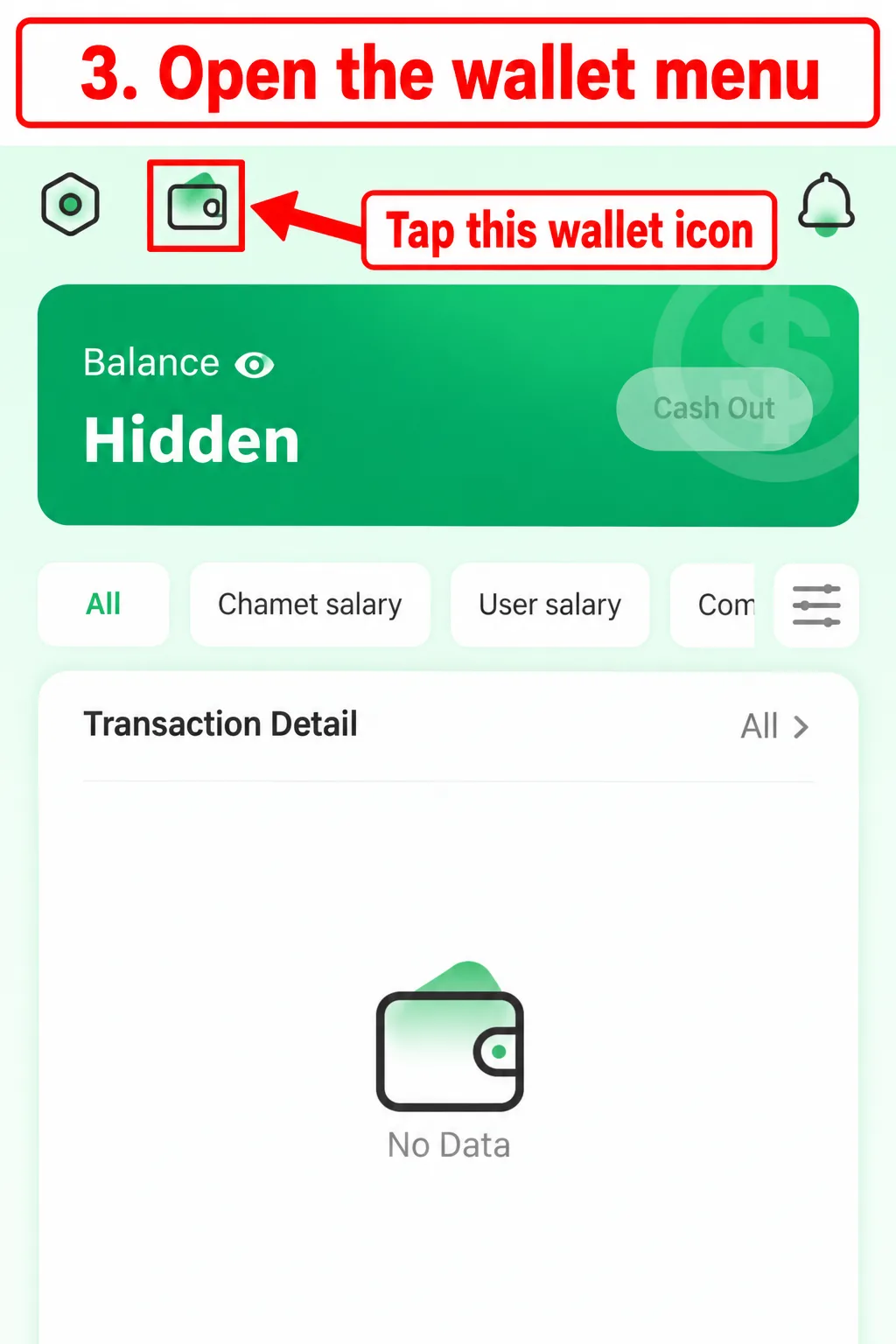
Open the wallet menu
-
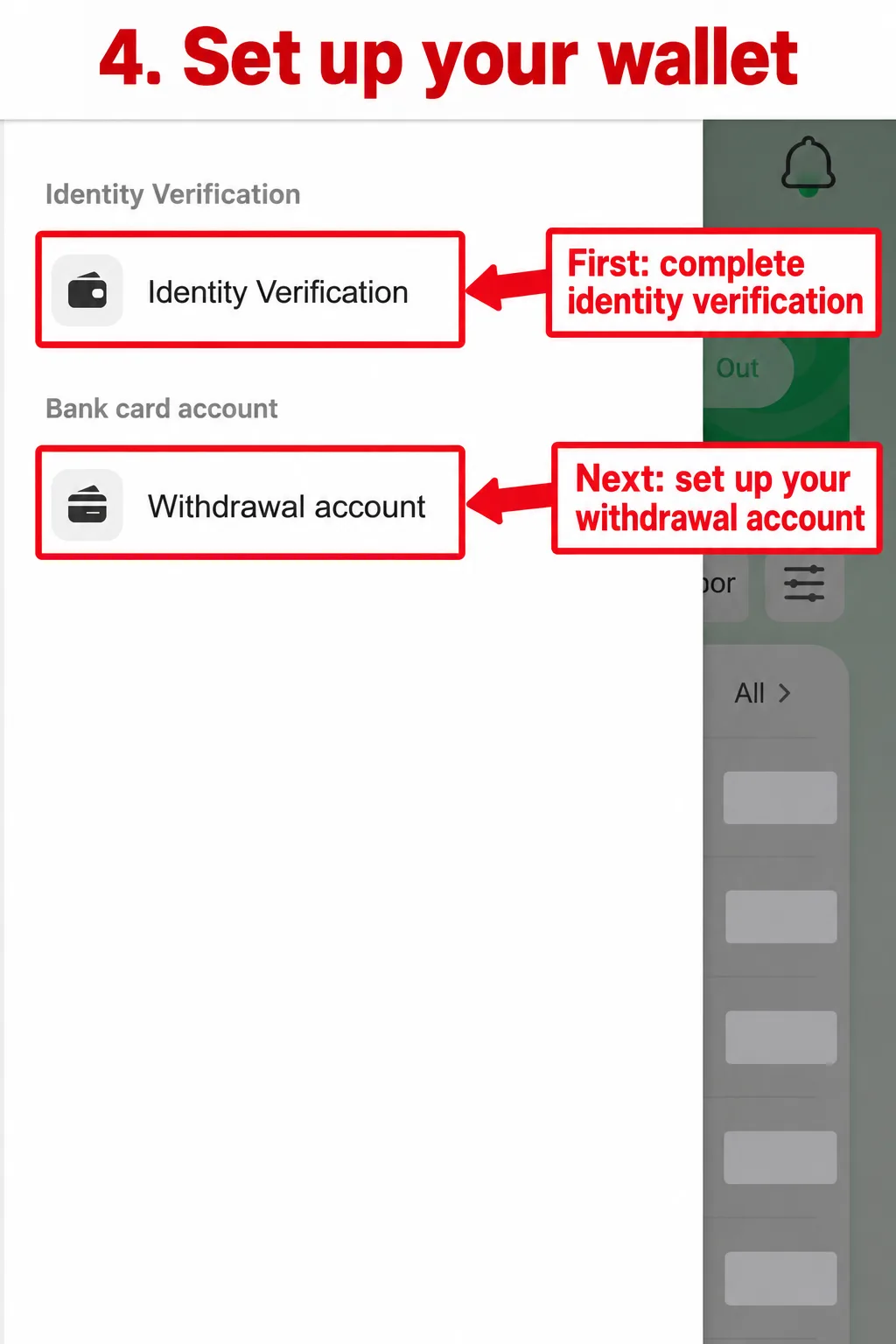
Set up your wallet
-
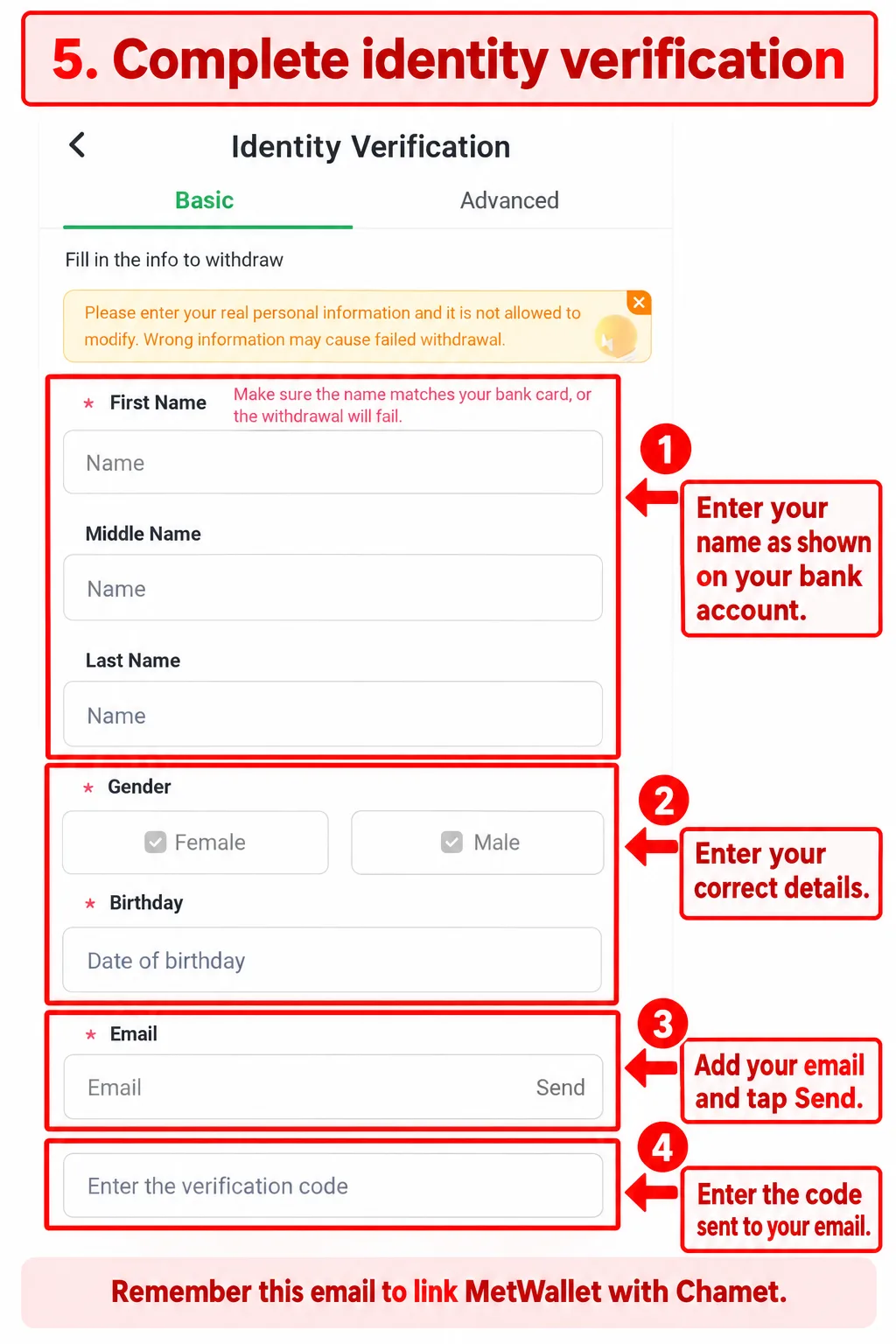
Complete identity verification
-
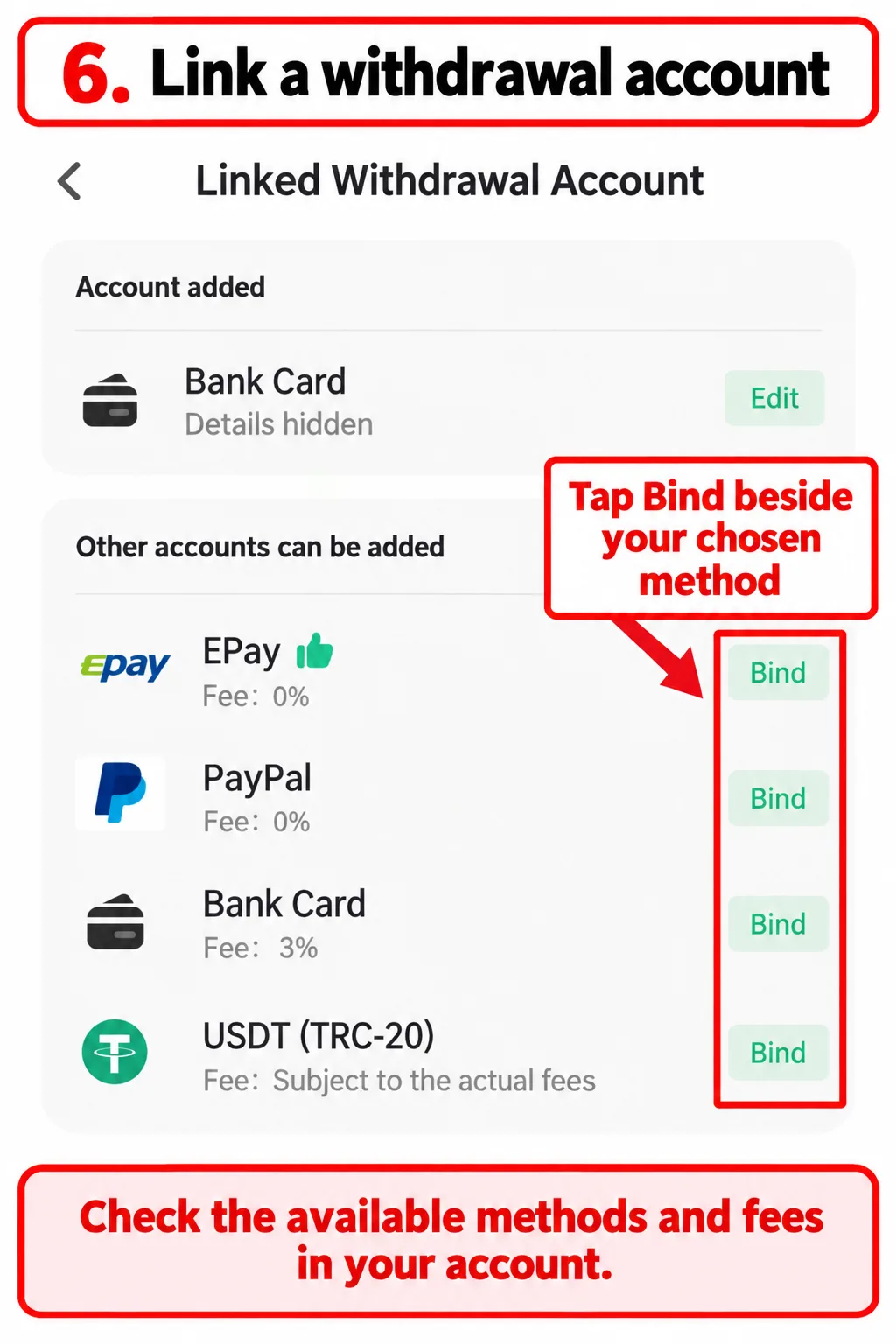
Link a withdrawal account
Part 2: Withdraw from Chamet to MetWallet
-
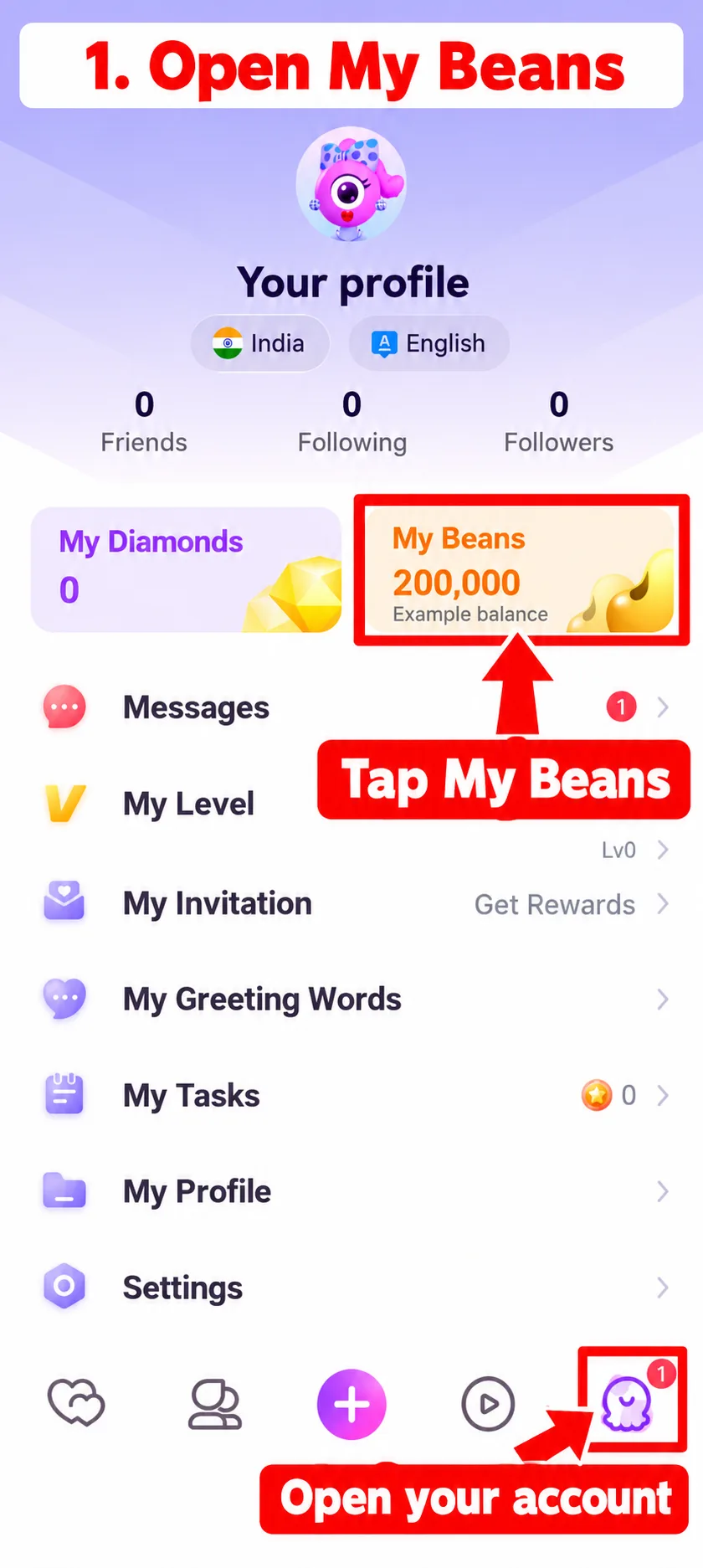
Open My Beans
-
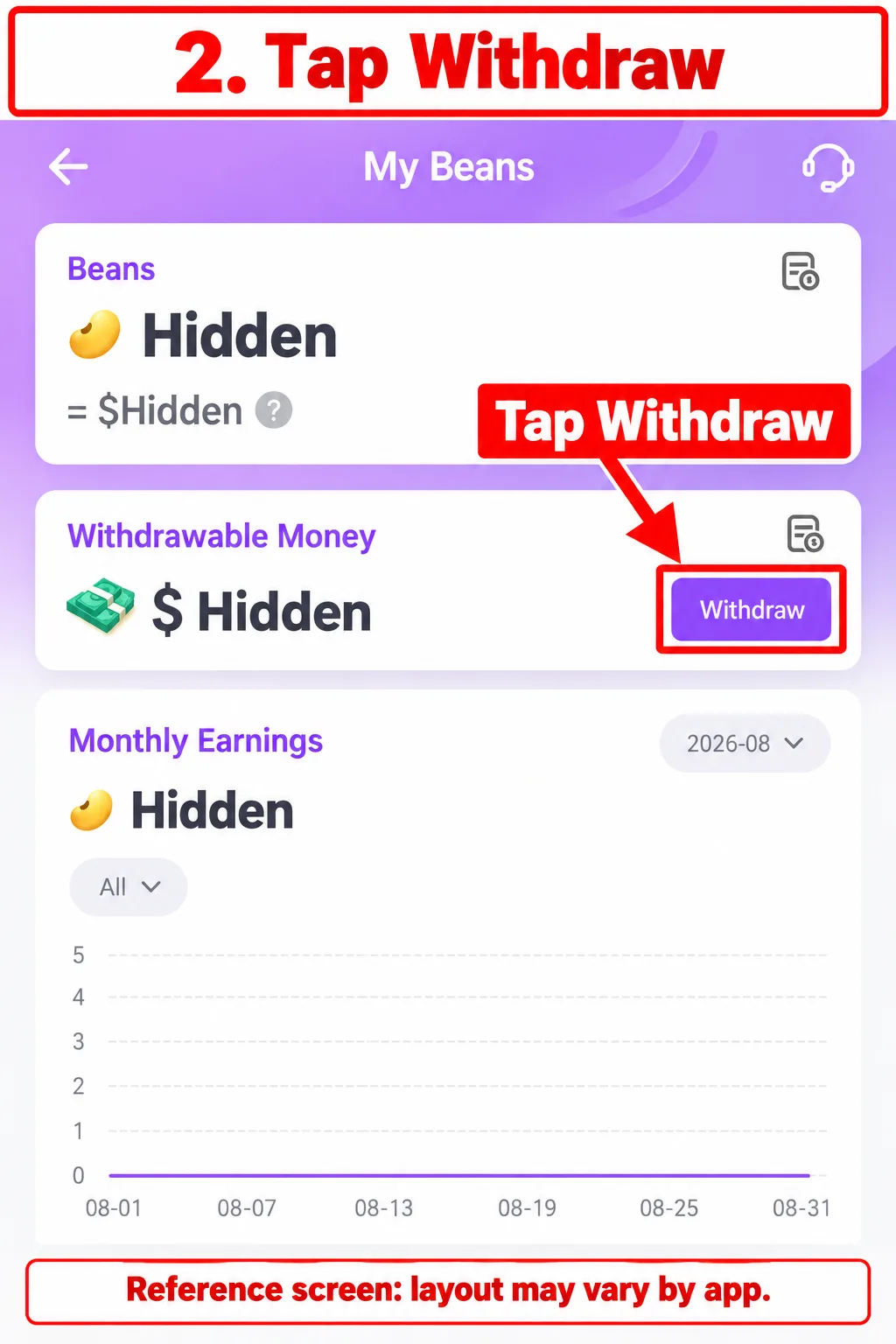
Tap Withdraw
-
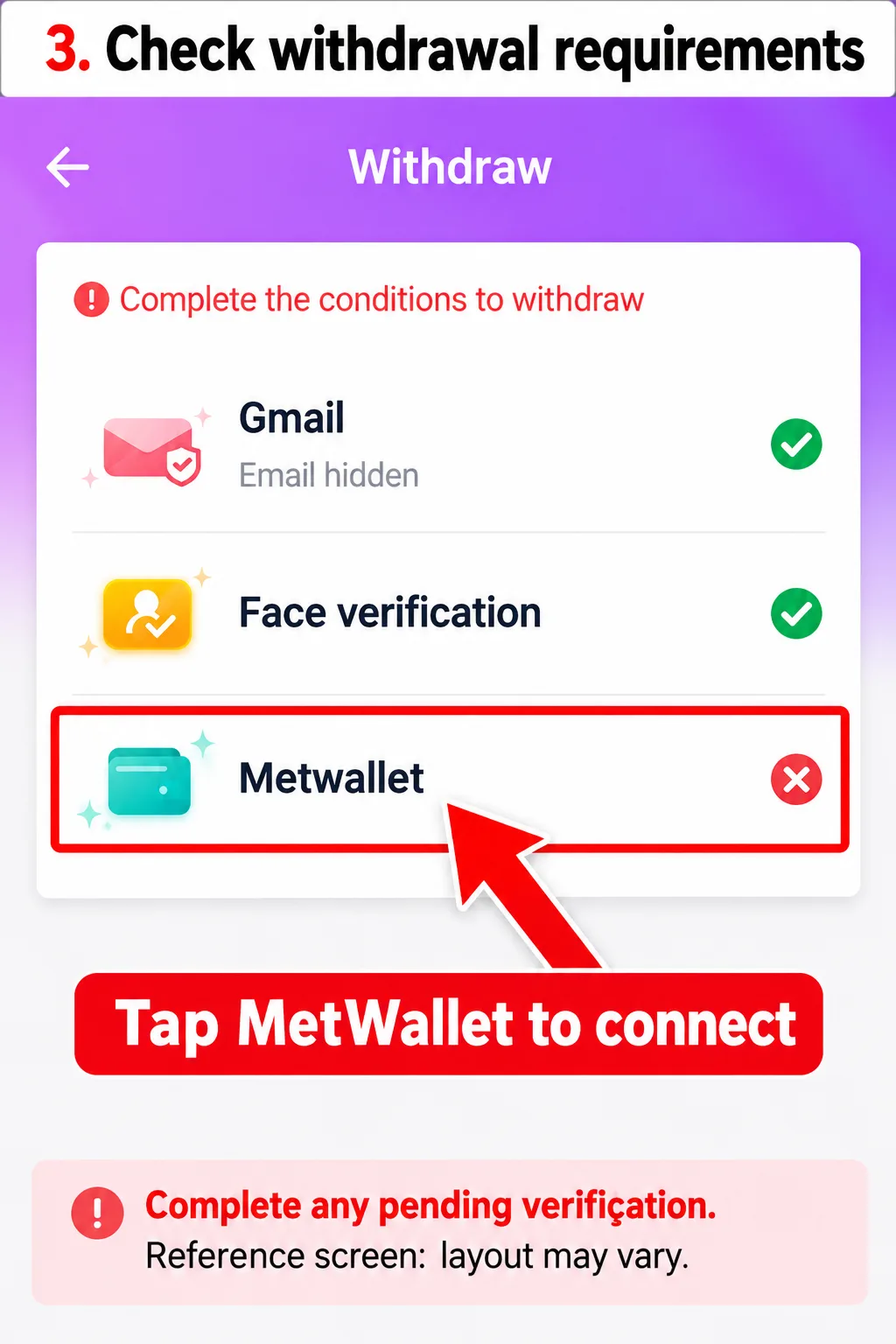
Check withdrawal requirements
-
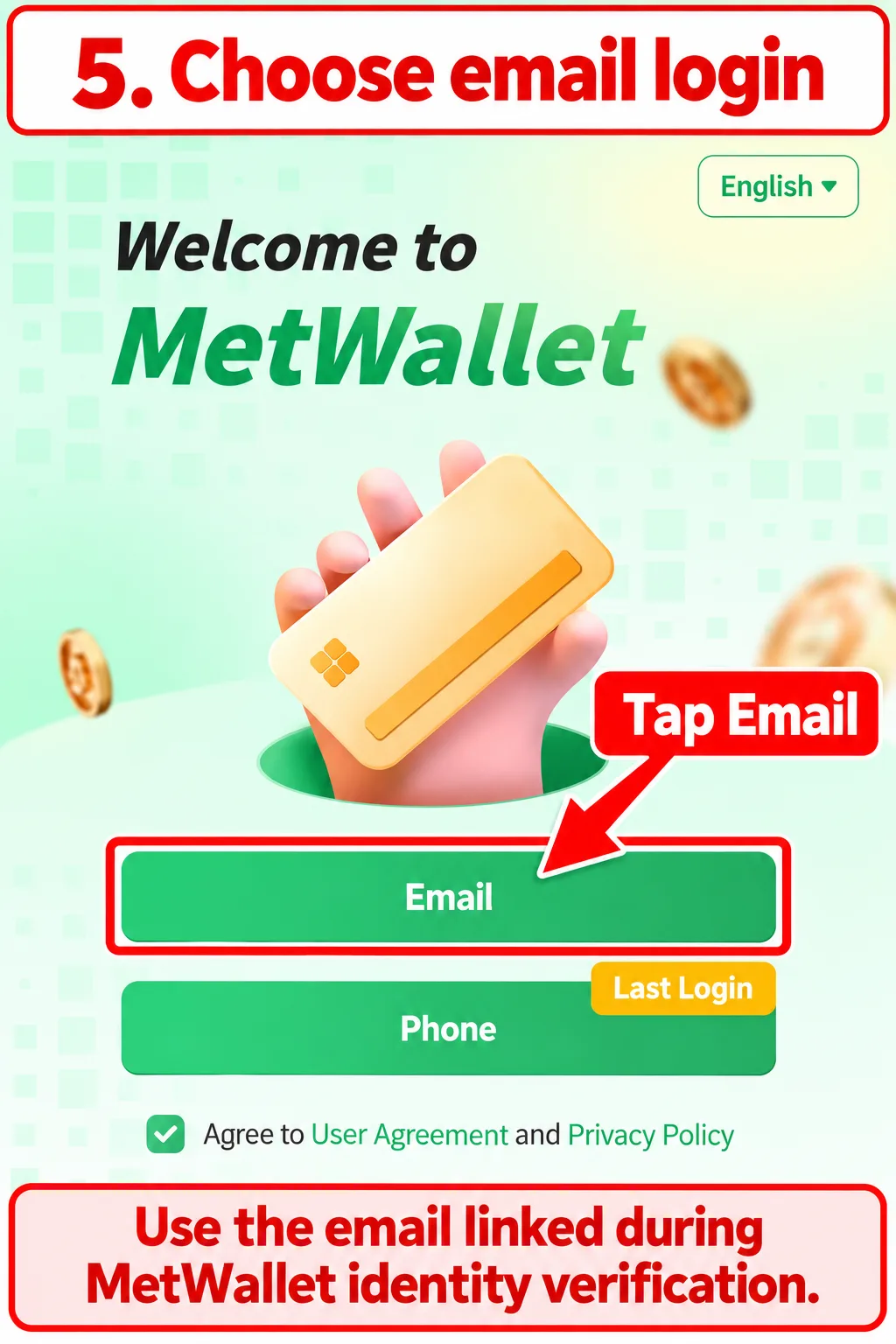
Choose email login
-
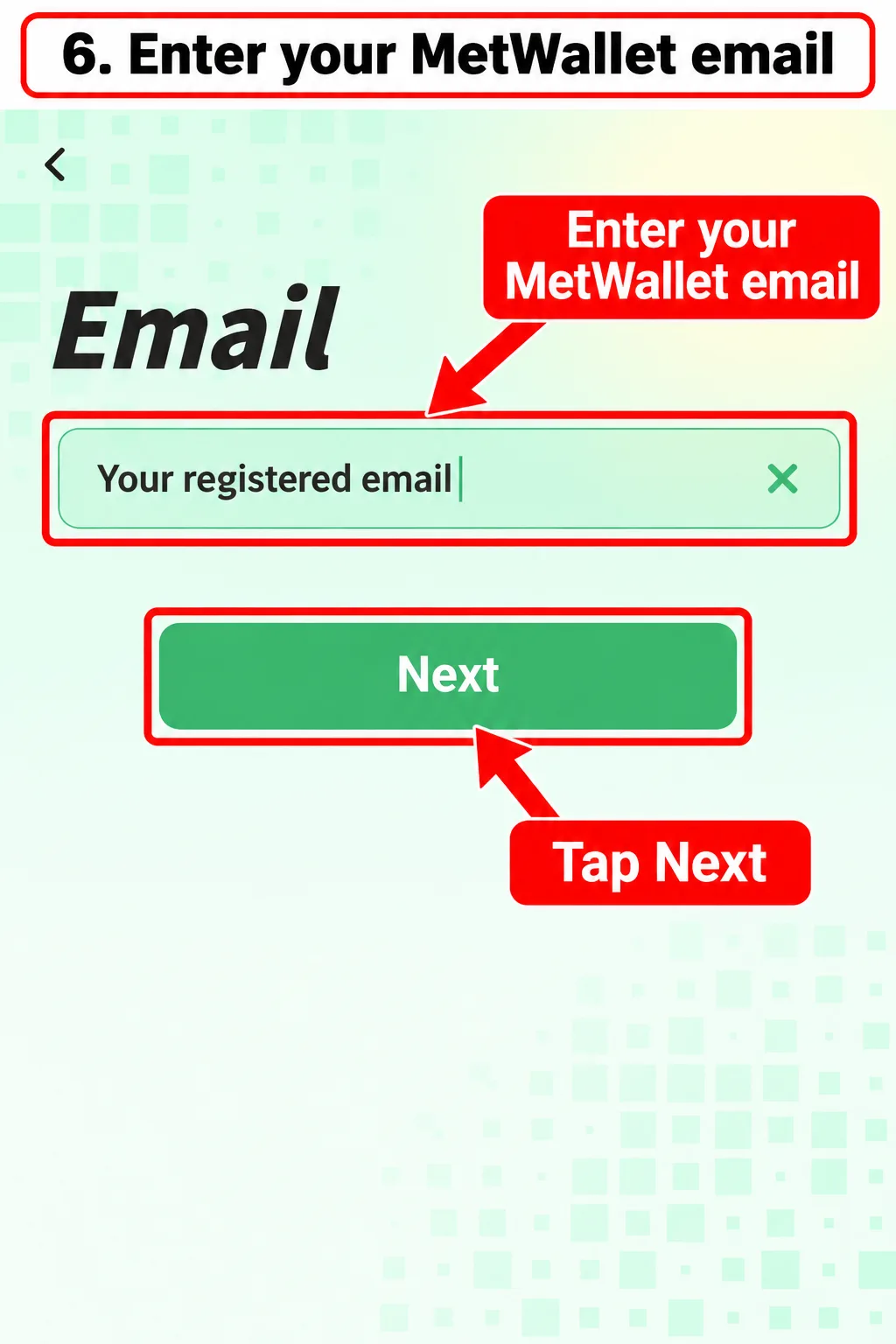
Enter your MetWallet email
-
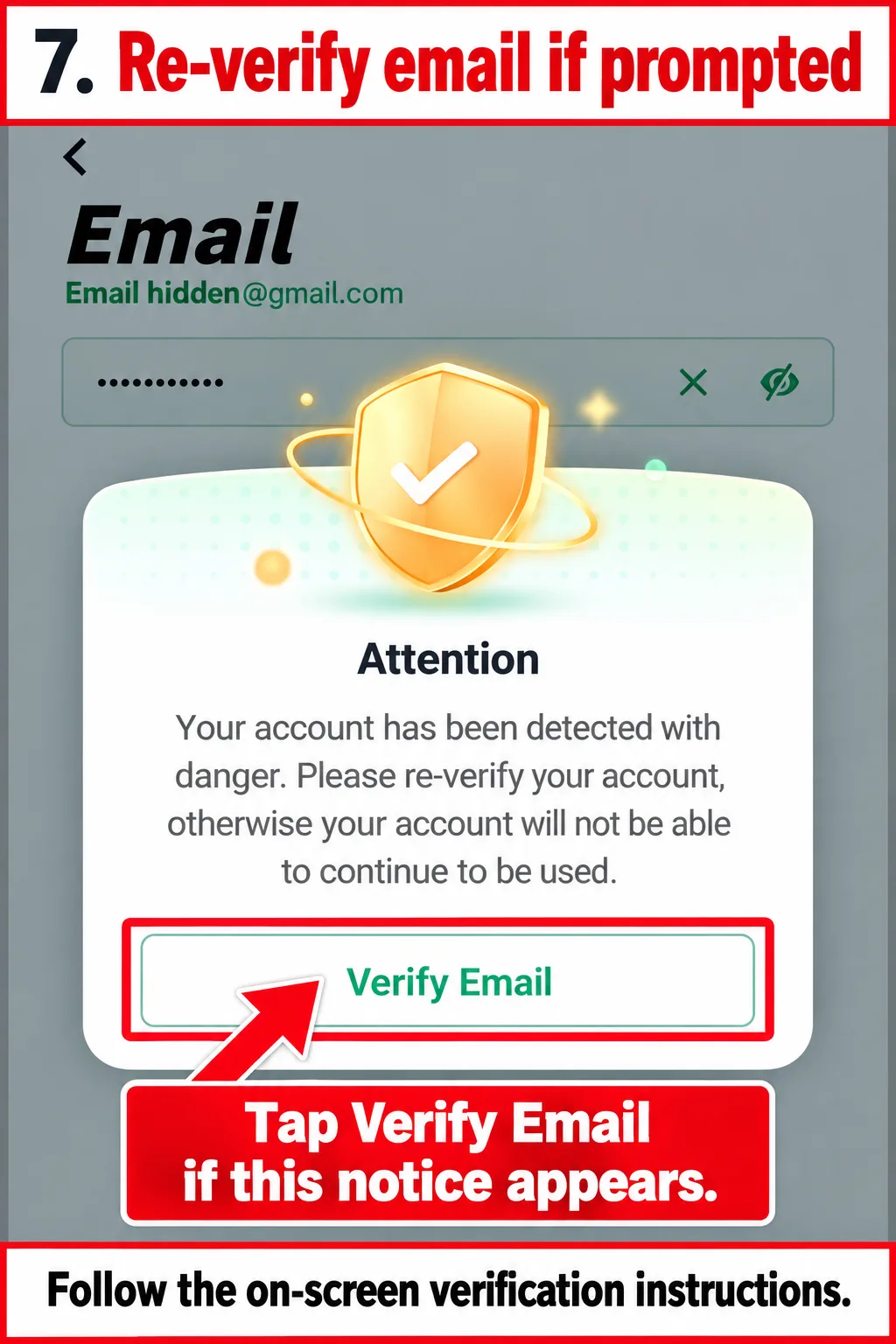
Re-verify your email if prompted
-
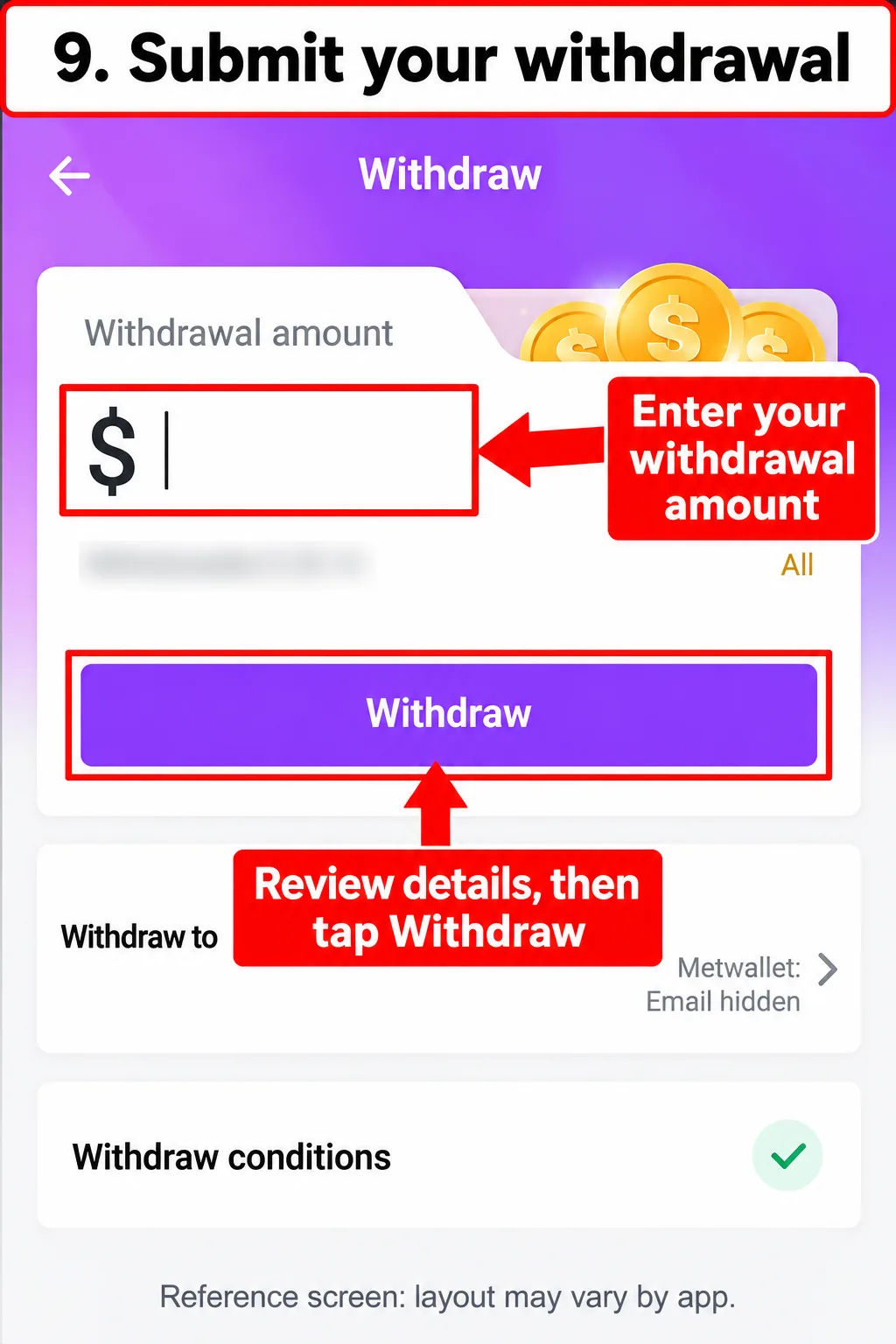
Submit your withdrawal
-
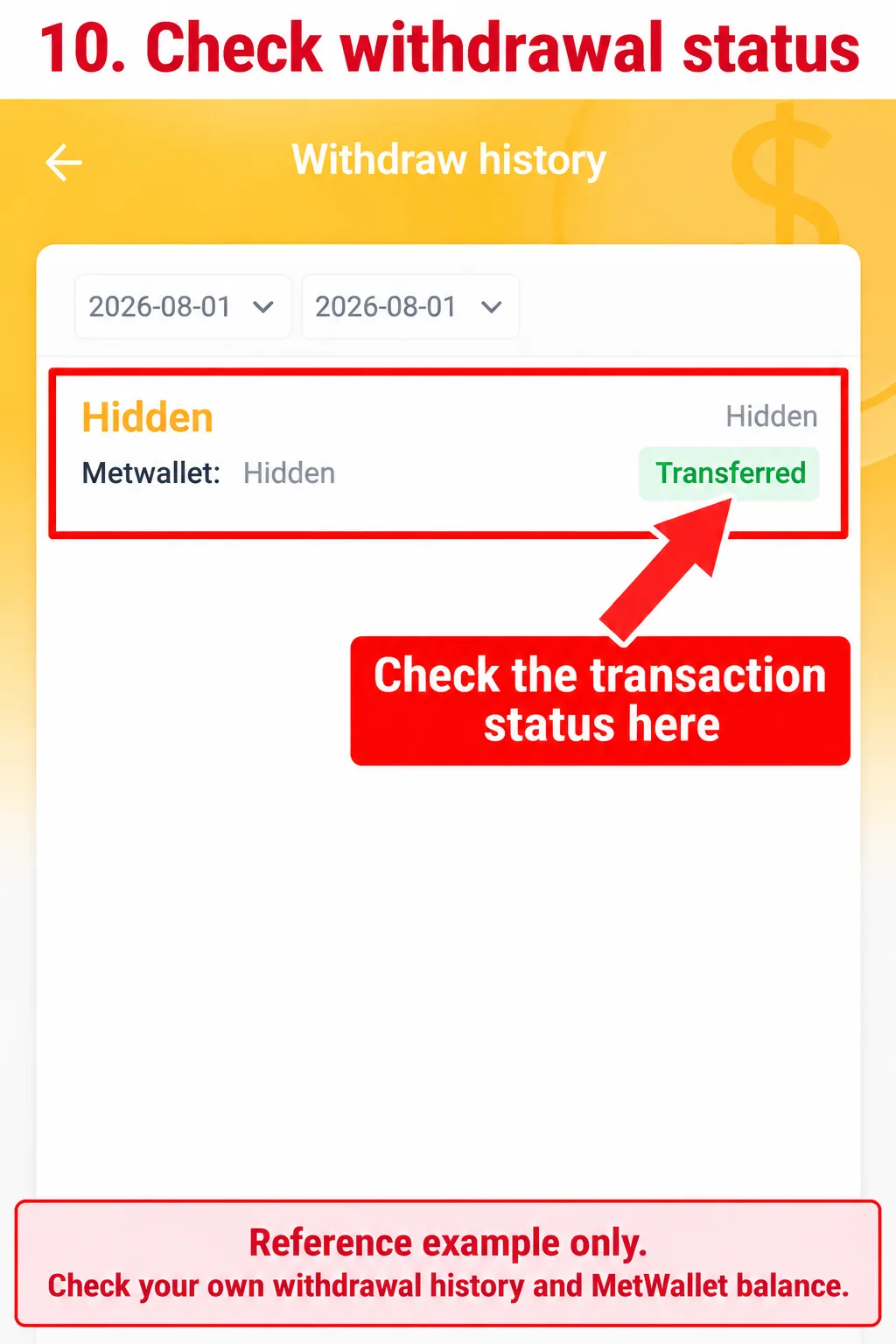
Check withdrawal status
If Something Goes Wrong
| Issue | Next check |
|---|---|
| Wallet will not link | Check that you used the email verified for the intended MetWallet account and completed the authorization flow. |
| Withdraw button is unavailable | Review the account’s displayed conditions, available balance and limits. |
| Identity details are rejected | Compare the entered details with the documents or payout-account information requested by the provider. |
| Email code does not arrive | Check the address, inbox and spam folder; wait for the resend option. |
| Request is pending | Check transaction history and any processing information shown before submitting another request. |
| Funds reached MetWallet but not the bank | Check whether you have separately requested wallet cash-out and review that transaction’s status. |
For account-specific payment disputes, use the relevant platform or payment provider’s support. Our guide cannot approve verification, release a payment or reverse a transfer.
Frequently Asked Questions
Which email should I use to link MetWallet?
Use the email verified on the MetWallet account you intend to link. In this walkthrough, that is the email entered during wallet identity verification.
Does linking a wallet automatically withdraw my money?
Linking authorizes the connection. Follow the withdrawal screen to request a transfer, and check its status afterward.
Does money go straight to my bank?
In this walkthrough, the first transfer is to MetWallet. Cashing out from the wallet to a bank or another payout method is a separate step.
What is the minimum withdrawal and how long does it take?
Check the current limits and processing information in your account. This guide does not establish a universal minimum, processing time or fee.
Is this also the agency commission payout process?
This illustrated flow follows host withdrawals through My Beans. Agents should check the settlement and payment instructions in their agency account; do not assume the host process applies to agency commissions.